82 HTML - Table Colgroup
HTML Table Colgroup
In HTML, the <colgroup> element is used to define a group of columns in a table. It allows you to apply properties to multiple columns simultaneously, providing a more efficient way to style or format columns.
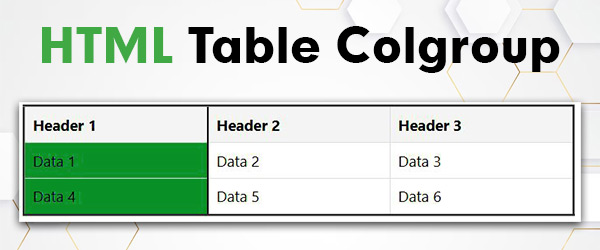
The <colgroup> Tag
The <colgroup> is often used in conjunction with the <col> element, where each <col> tag represents an individual column within the group. This grouping enhances readability and simplifies the application of styles or attributes to specific columns in a table.
Syntax
Following is the syntax to use <colgroup> with <table> tag:
<table>
  <colgroup>
    <col span="value" style="width: ...;">
    <col style="...">
    <!-- More <col> elements... -->
  </colgroup>
  <!-- Other table elements such as <thead>, <tbody>, ... -->
</table>
Using <colgroup> Tag in HTML Table
Using <colgroup> in HTML involves the following steps −
1. Insert <colgroup> Tag
Place the <colgroup> tag within the <table> element, usually inside the <thead> (table head) or <tbody> (table body) section.
<table>
  <colgroup>
    <!-- Column definitions -->
  </colgroup>
  <thead>
    <!-- Table headers -->
  </thead>
  <tbody>
    <!-- Table rows -->
  </tbody>
</table>
2. Define Columns
Inside the <colgroup> tag, use one or more <col> tags to represent each column. Specify attributes or styles for the columns within these <col> tags.
<table>
  <colgroup>
    <col>
    <col>
    <col>
  </colgroup>
  <!-- Table content -->
</table>
3. Apply Attributes or Styles
Define attributes or styles for the columns by adding attributes such as span, width, style, or class to the <col> tags.
Example of HTML Table Colgroup
In this example, the <colgroup> tag defines two columns with different widths, and the styles are applied to the columns using the `<col>` tags. The second row in the table is highlighted using a CSS class.
CSS Properties for <colgroup> Tag
In HTML, the <colgroup> element allows some specific CSS properties to enhance the presentation of table columns. The legal CSS properties that can be used within a <colgroup> are as follows −
width Property − This property sets the width of the columns within the <colgroup>. It allows you to define the relative or absolute width of each column.
visibility Property − The visibility property can be used to control the visibility of columns within the <colgroup>. You can set it to "hidden" to make a column invisible.
Background Properties − Background properties, such as background-color, can be applied to add background styling to the columns. This can enhance the visual appeal of the table.
Border Properties − Border properties, like border-color and border-width, enable the customization of borders around the columns. This is useful for creating well-defined visual boundaries.
Attempting to apply other CSS properties will have no impact on the styling of the table columns. Therefore, when styling tables with <colgroup>, focus on the available properties to achieve the desired layout and appearance.
Example
Multiple Col Elements
Certainly! The <colgroup> element in HTML allows you to group a set of columns in a table and apply styles to them collectively. Within <colgroup>, you can use multiple <col> elements to define different styles for individual columns.
Example
The <colgroup> contains three <col> elements, each with a specific 'width' style, defining the width of individual columns.
Empty Column groups
In HTML, a <colgroup> element can be used to define a group of columns in a table. An empty <colgroup> can be employed to provide a structural placeholder for potential styling or later use. While it doesn't contain explicit <col> elements, it can still influence the overall structure of the table.
Example
Here's a simple example demonstrating the use of an empty <colgroup>. In here, the <colgroup> is empty but serves as a placeholder for potential styling. The entire <colgroup> is styled with a background color and a border. The <col> elements are not explicitly used, but their styling can be defined within <colgroup> for future use or consistency in the structure.

Comments
Post a Comment